Getting Started with Player
How to Set Up Your First Video Feed
This guide walks you through creating your first video feed and adding it to your Shopify store using the SwipeUp Player.
Step 1: Open the SwipeUp App
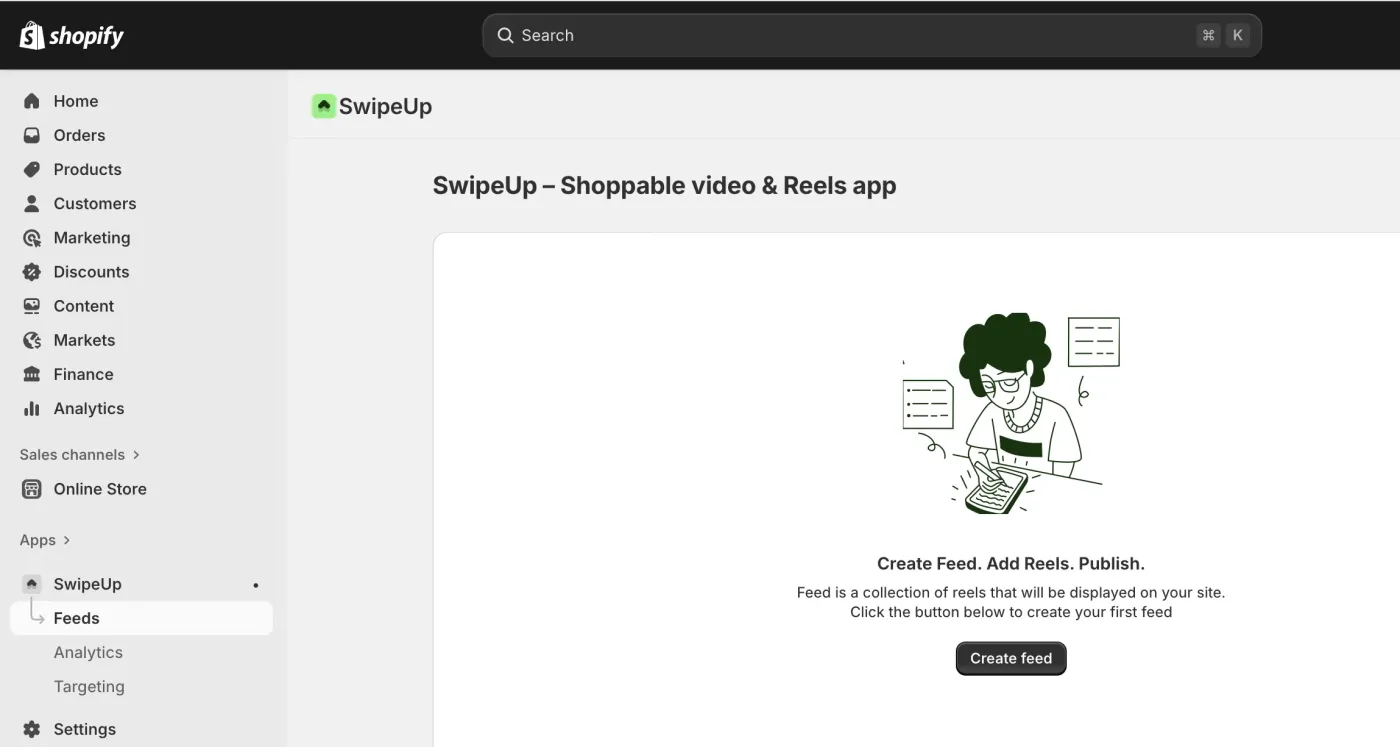
Navigate to your Shopify admin and open the SwipeUp app from the Apps section.
Step 2: Create a New Feed
Click the Create Feed button to start building your first video feed.
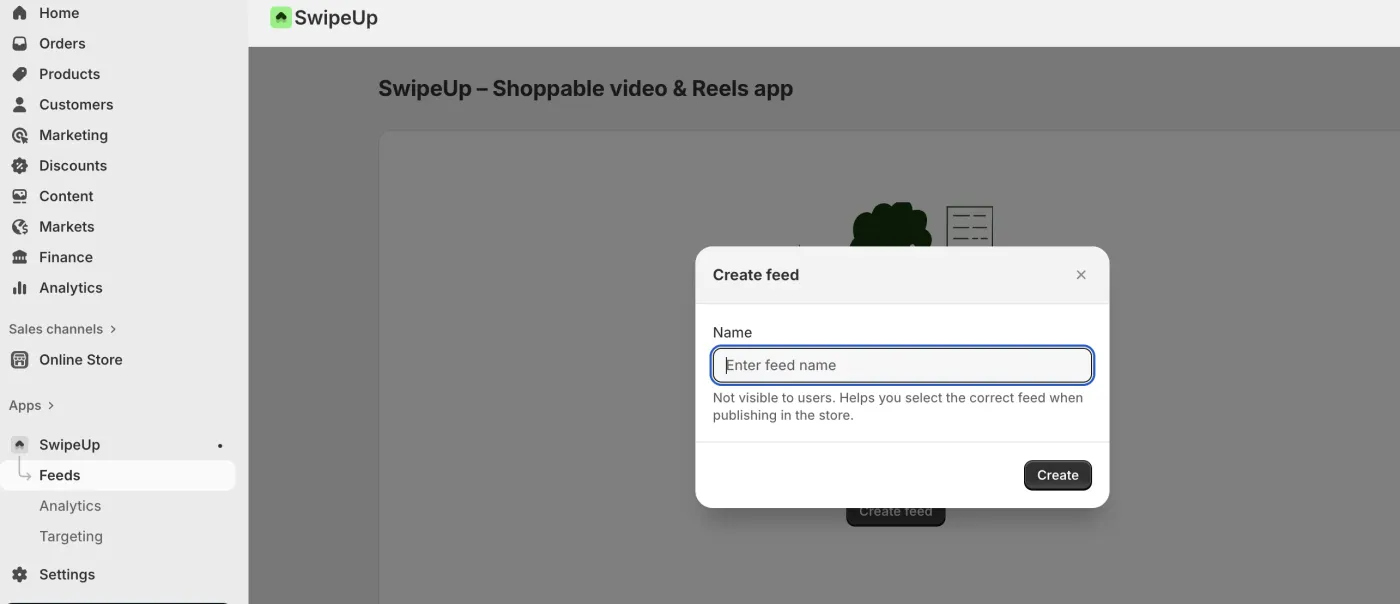
Step 3: Name Your Feed
Enter a descriptive name for your feed. This name is for internal reference and helps you organize multiple feeds.
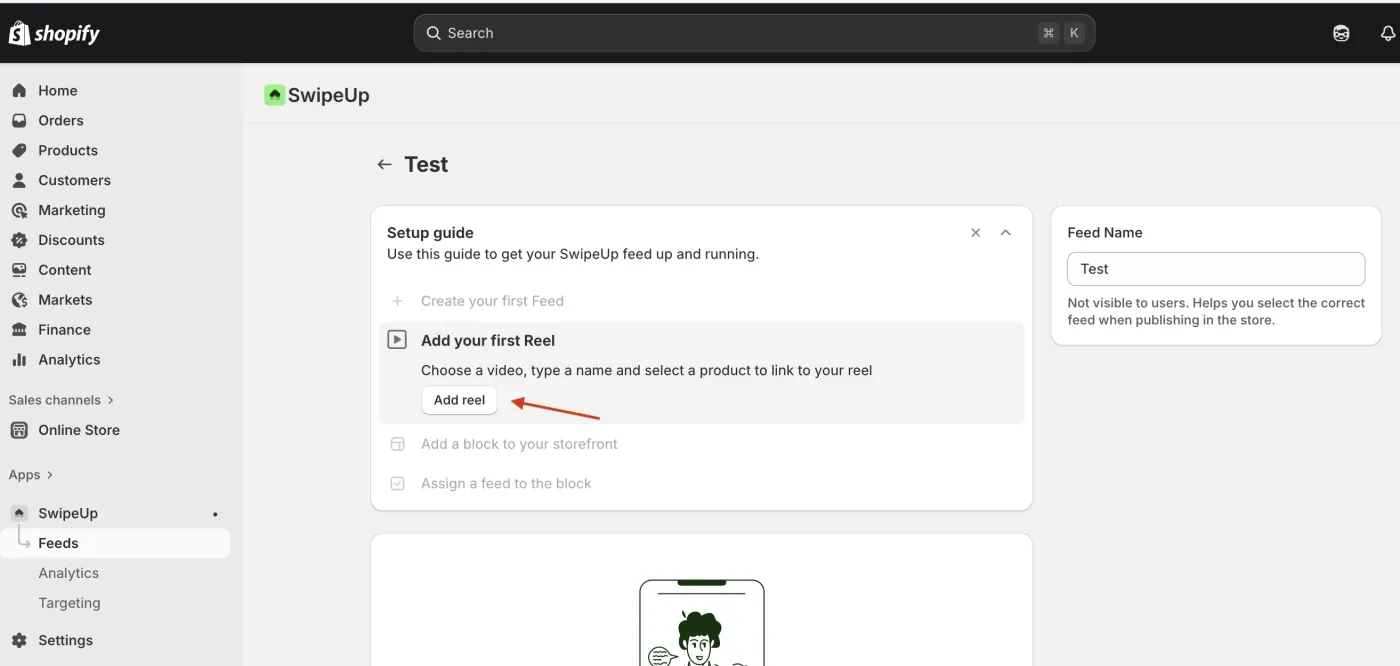
Step 4: Add a Reel
Click Add Reel to begin adding video content to your feed.
Step 5: Upload Your Video
Give your reel a name, then upload your video file. SwipeUp supports standard video formats optimized for mobile-first playback.
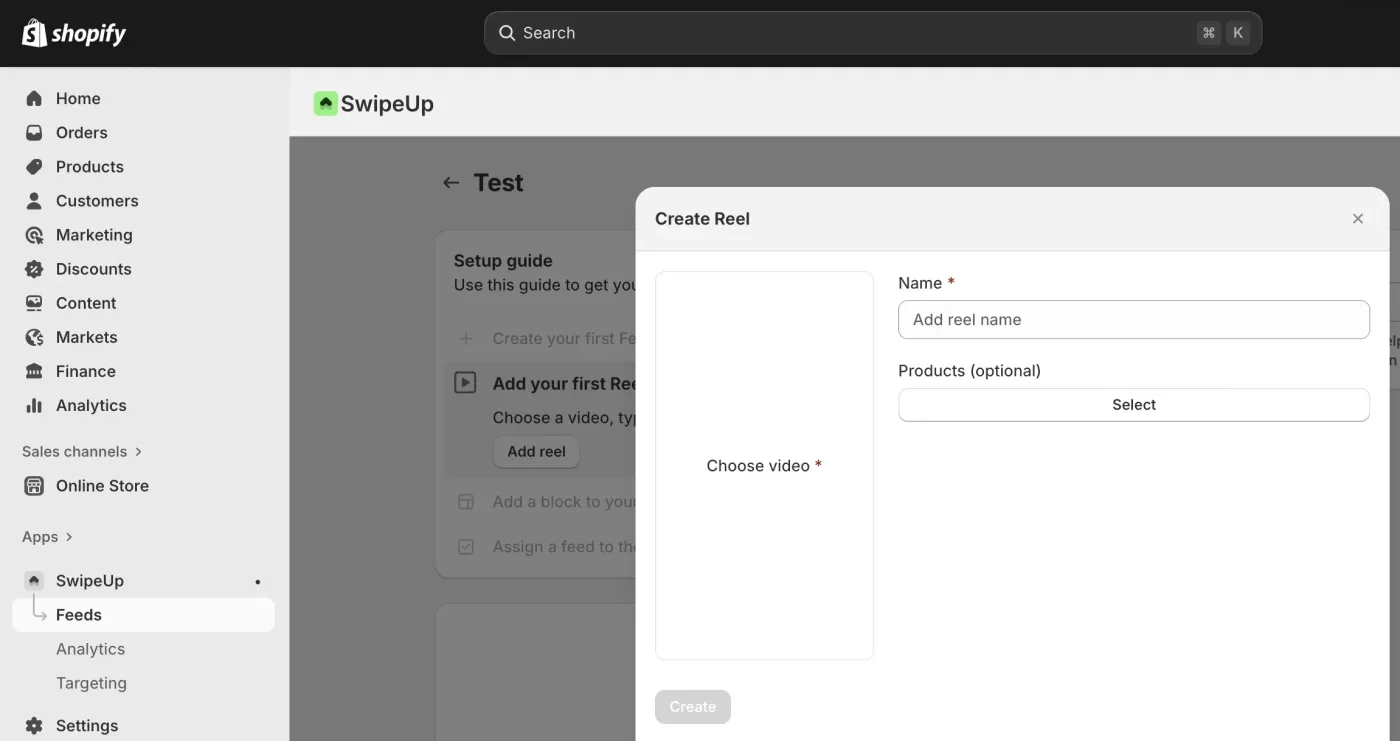
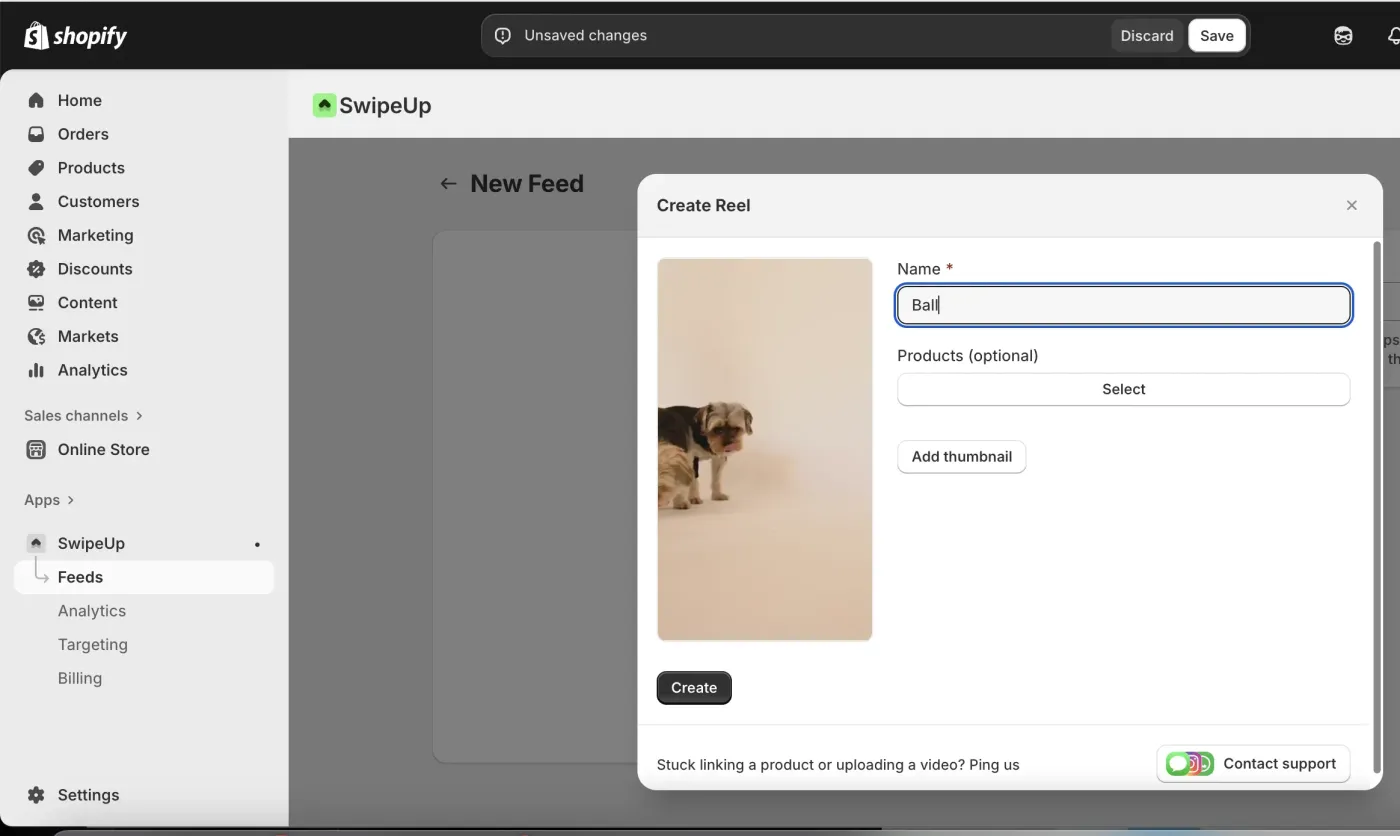
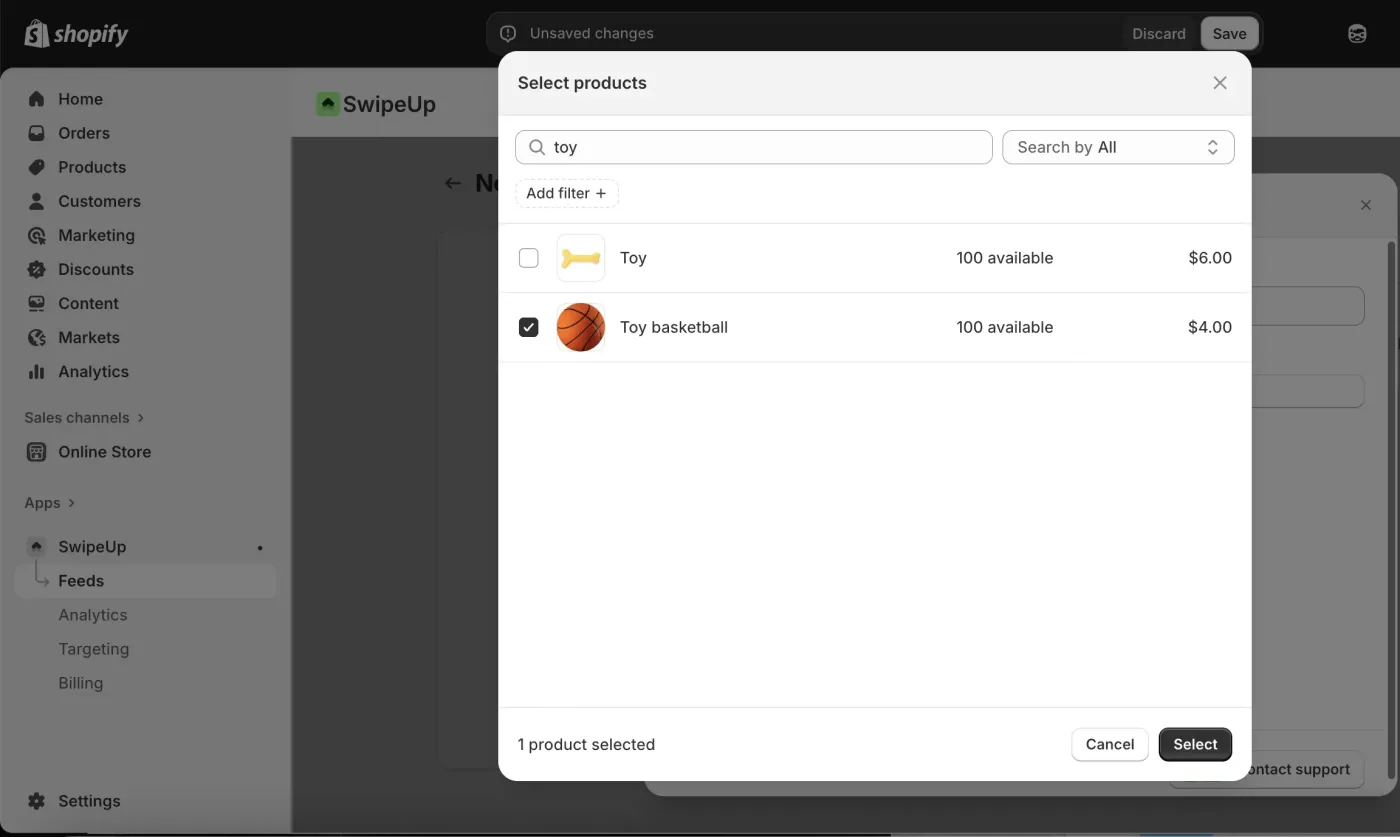
Step 6: Add a Product
Tag a product from your Shopify catalog to make the video shoppable. Select the product you want to link to this reel.
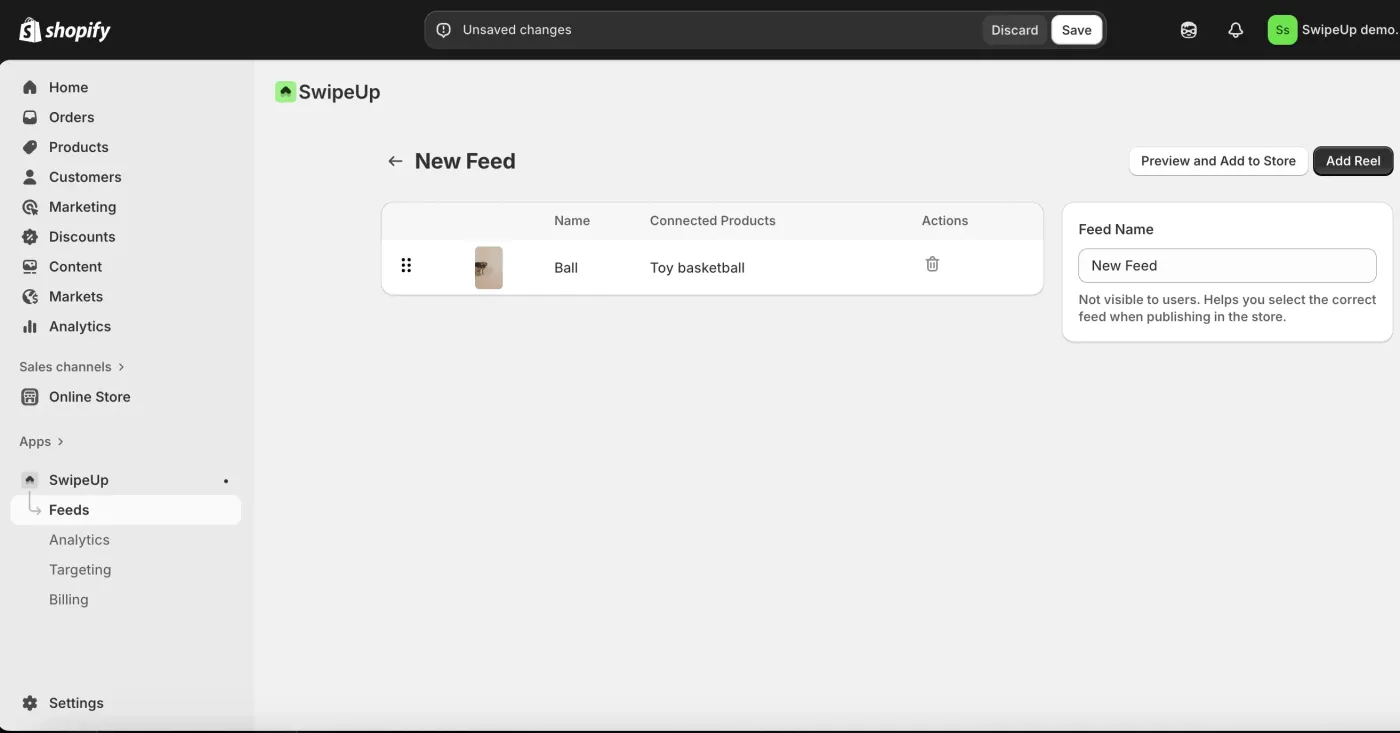
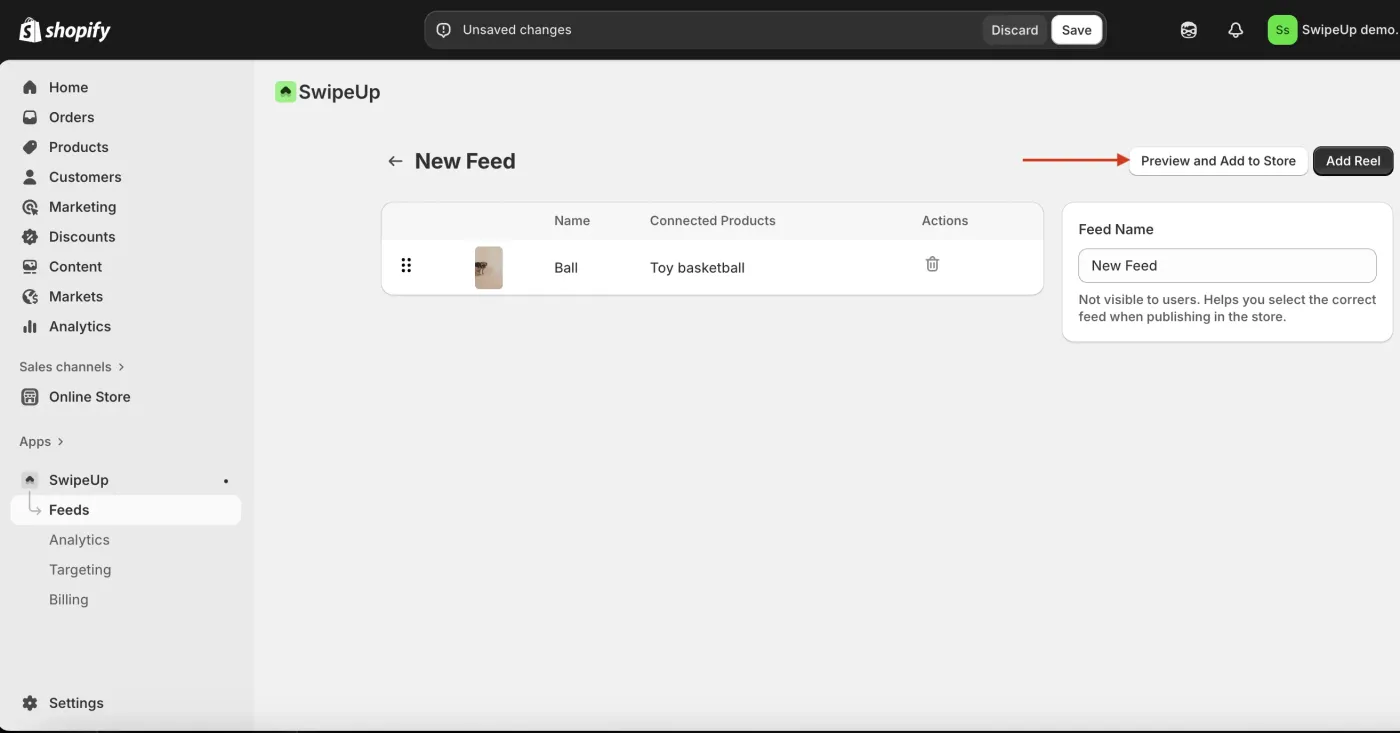
Step 7: Preview and Add to Store
Once your feed has at least one reel, you can preview how it will look. Click Add to Store to proceed with publishing.
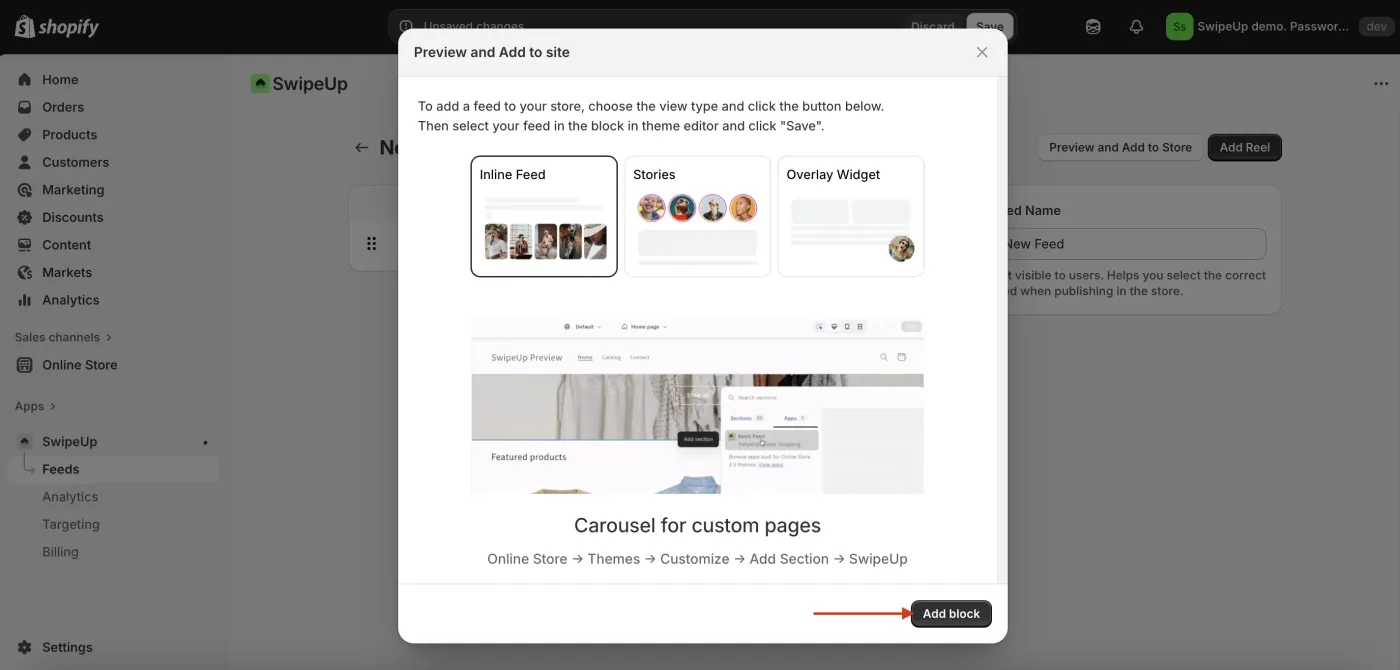
Step 8: Choose a Widget Type
Select the widget type that best fits your store layout. Options include carousel, grid, floating bubble, and more.
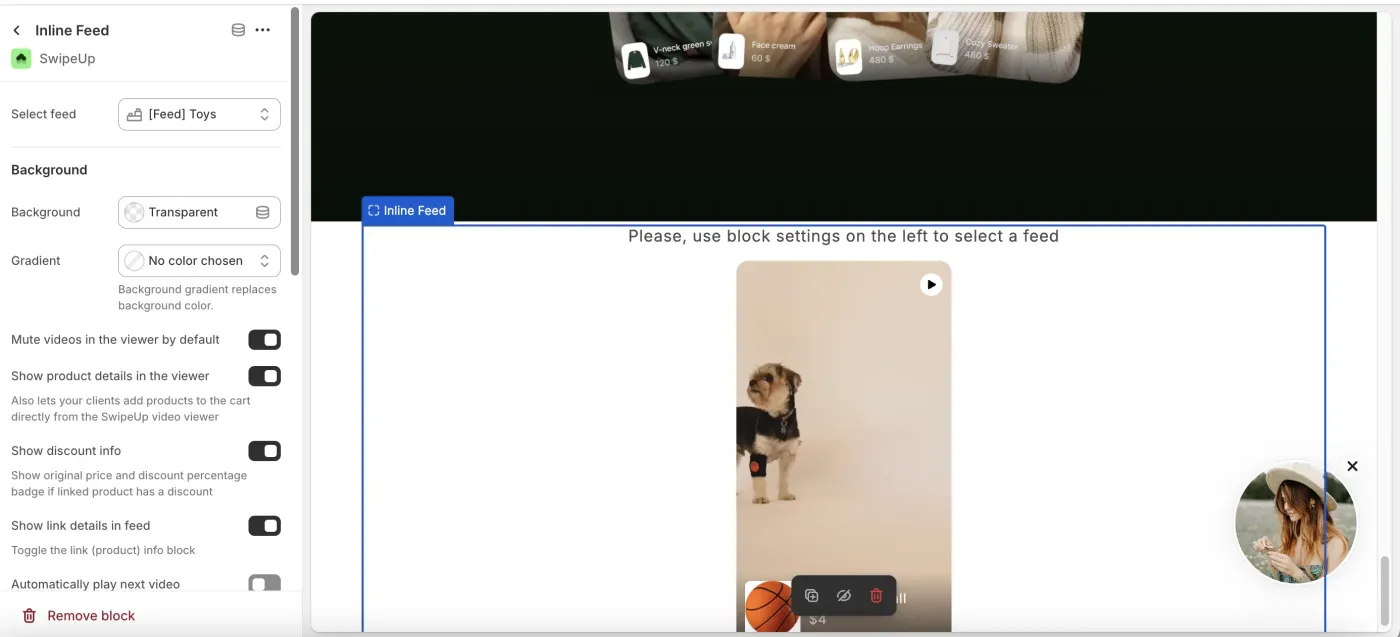
Step 9: Configure in the Theme Editor
Open your Shopify Theme Editor and select the SwipeUp section or block. Choose the feed you want to display.
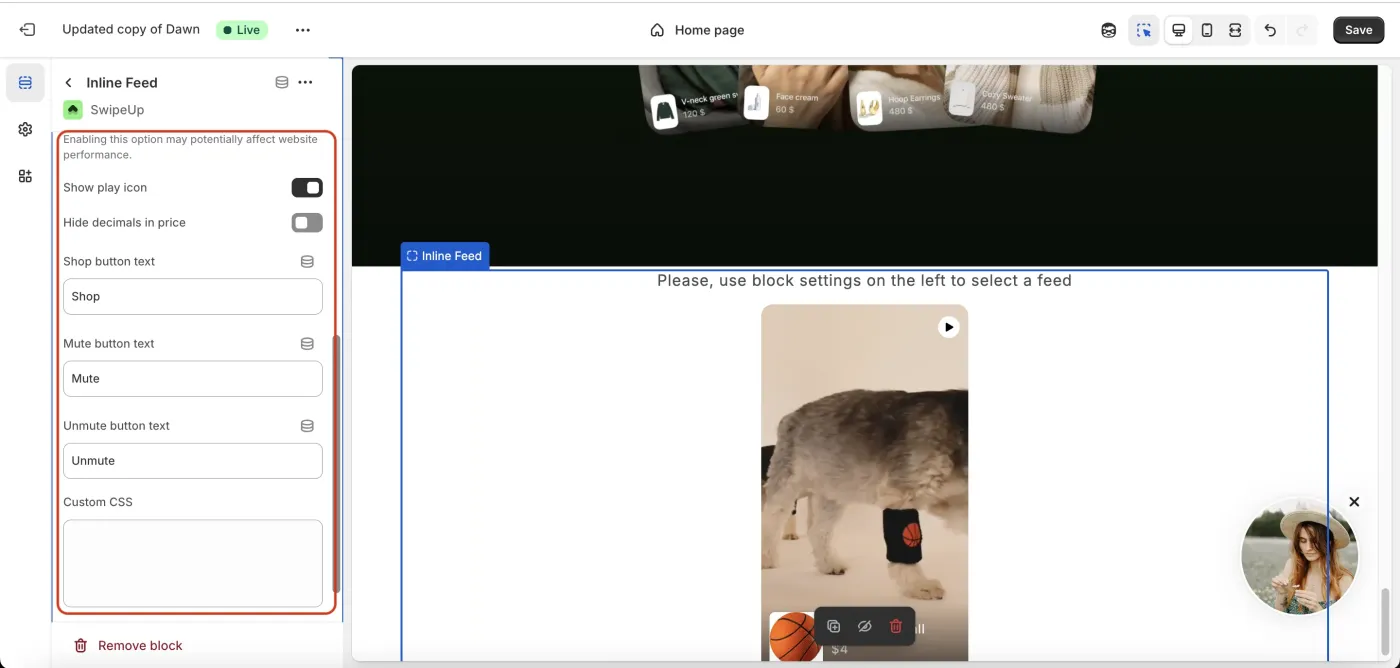
Step 10: Adjust Player Settings
Customize the player appearance, including size, autoplay behavior, and layout options to match your store design.
Step 11: Save and Publish
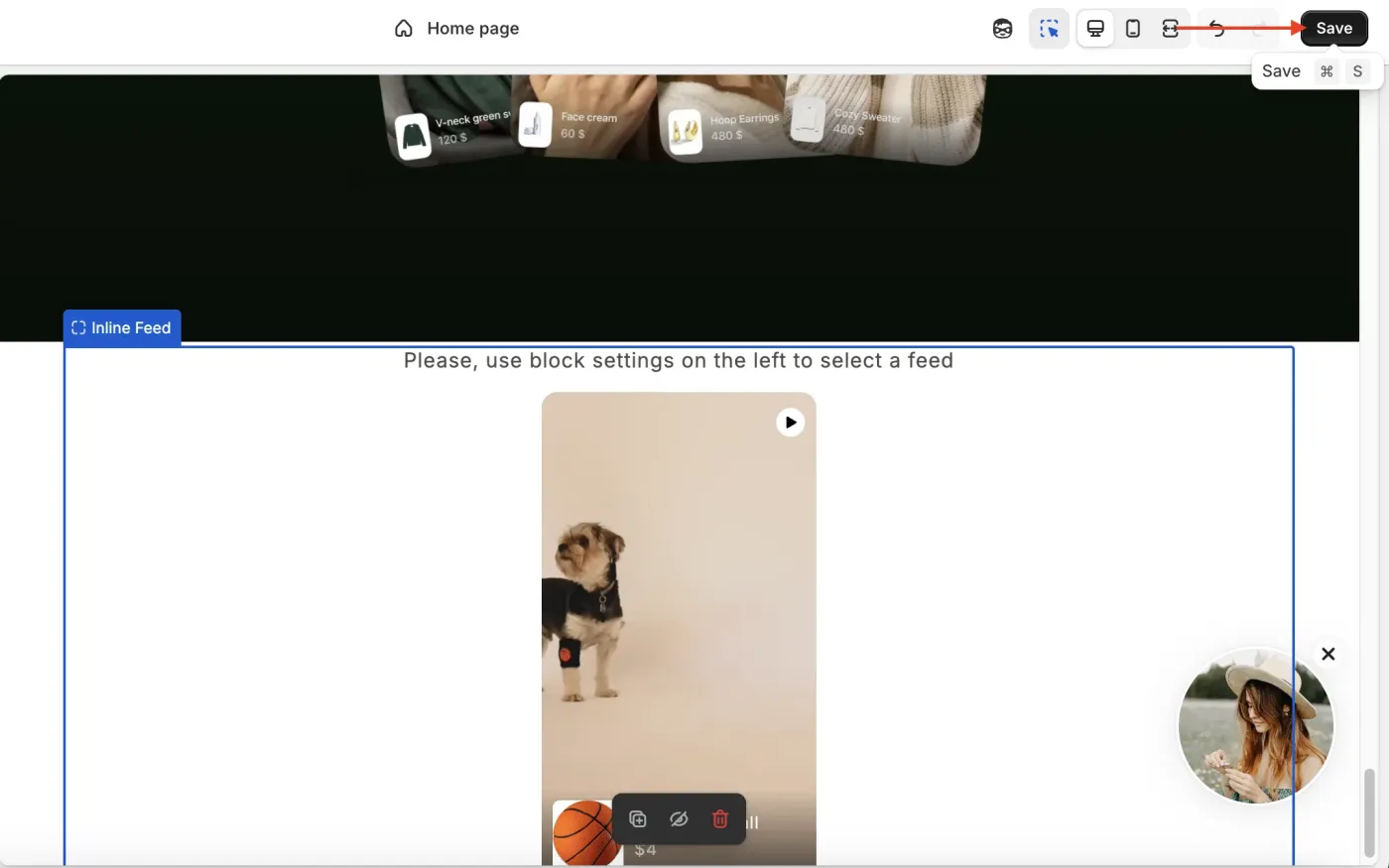
Click Save in the theme editor to publish your video feed. Your SwipeUp Player is now live on your store.