How to Customize SwipeUp to Match Your Brand
Customizing SwipeUp to Match Your Brand
SwipeUp offers a range of customization options so you can match the video player and widgets to your store’s brand identity. All visual changes are made through the Shopify Theme Editor.
Step 1: Open the Theme Customizer
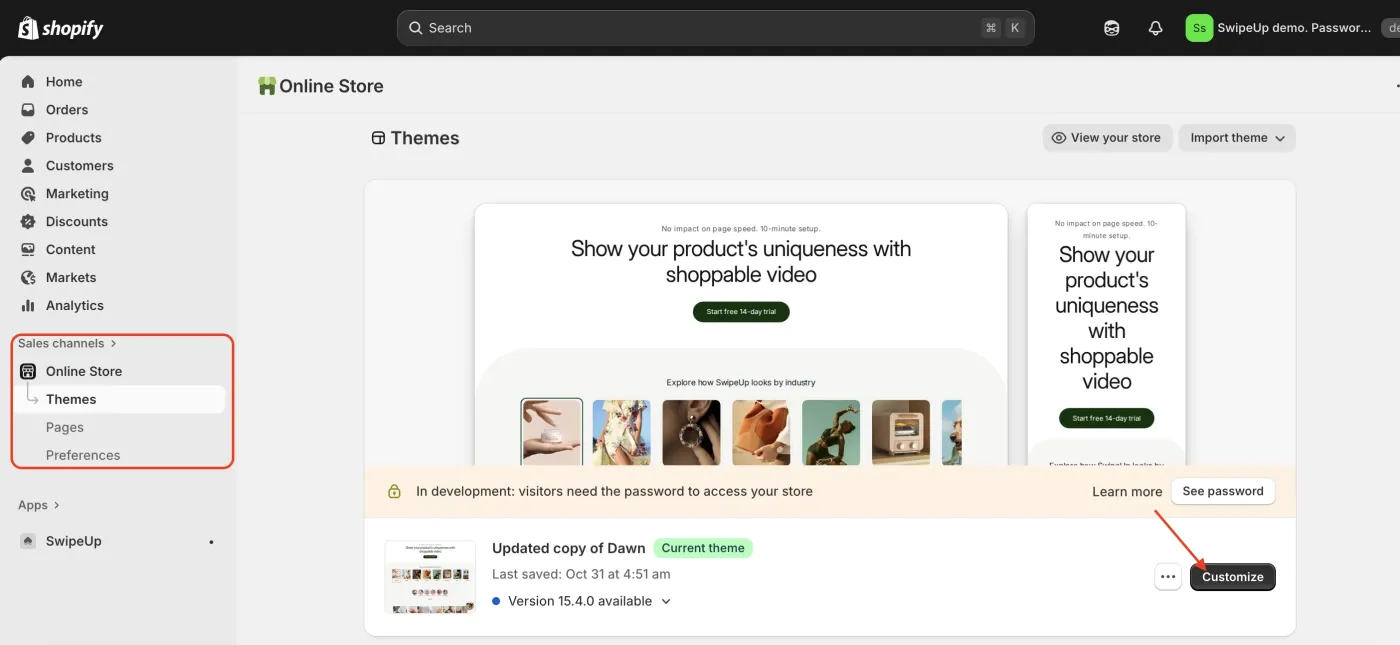
From your Shopify admin, go to Online Store > Themes and click Customize to open the Theme Editor.
Step 2: Select the SwipeUp Block
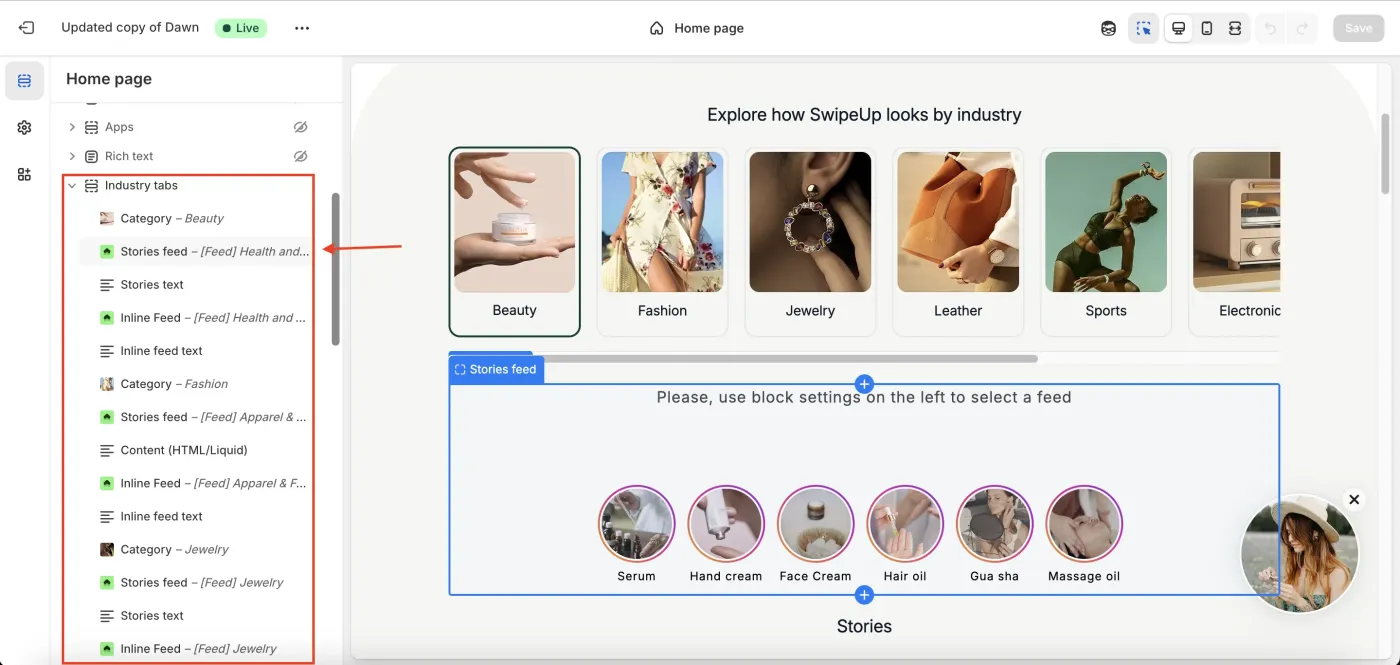
In the Theme Editor sidebar, locate and click on the SwipeUp section or block that you want to customize.
Step 3: Adjust Visuals and Text
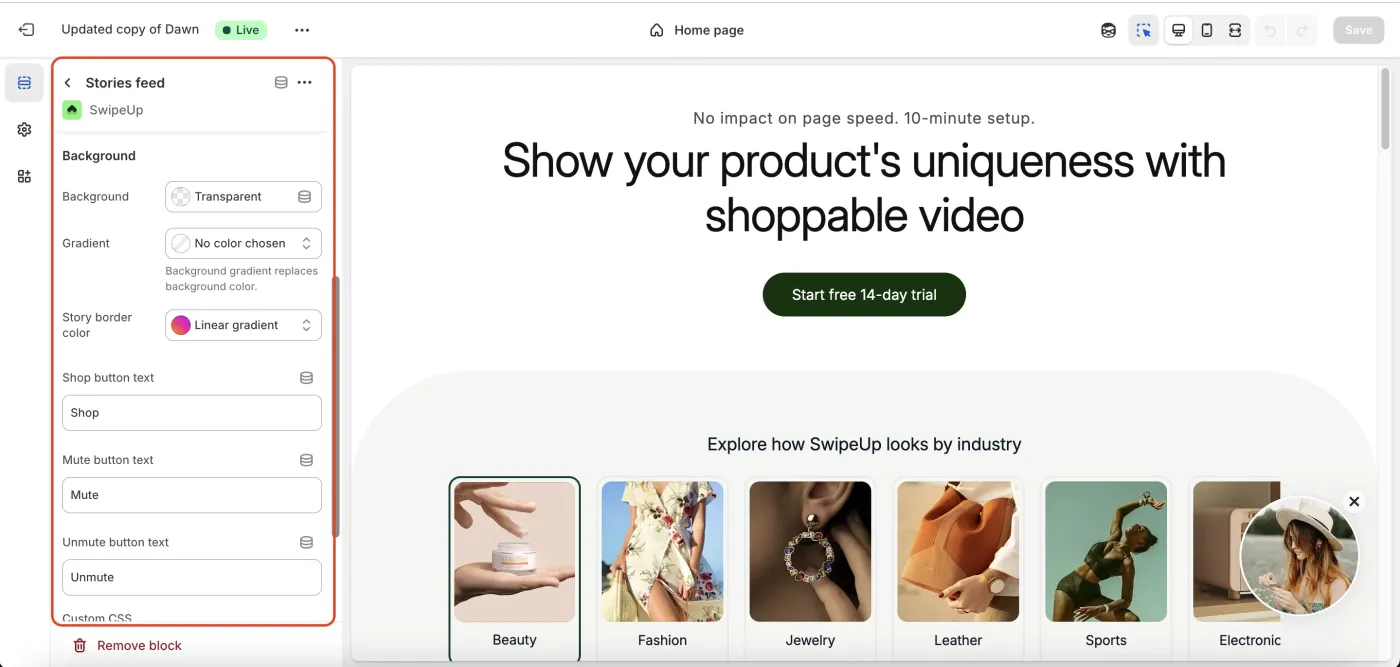
Use the available settings to customize the SwipeUp widget. You can adjust:
- Colors — Match button colors, text colors, and accent colors to your brand palette.
- Typography — Update font styles and sizes for labels and CTA text.
- Layout — Change the widget layout, spacing, thumbnail shape, and size.
- Buttons — Customize the appearance and text of call-to-action buttons.
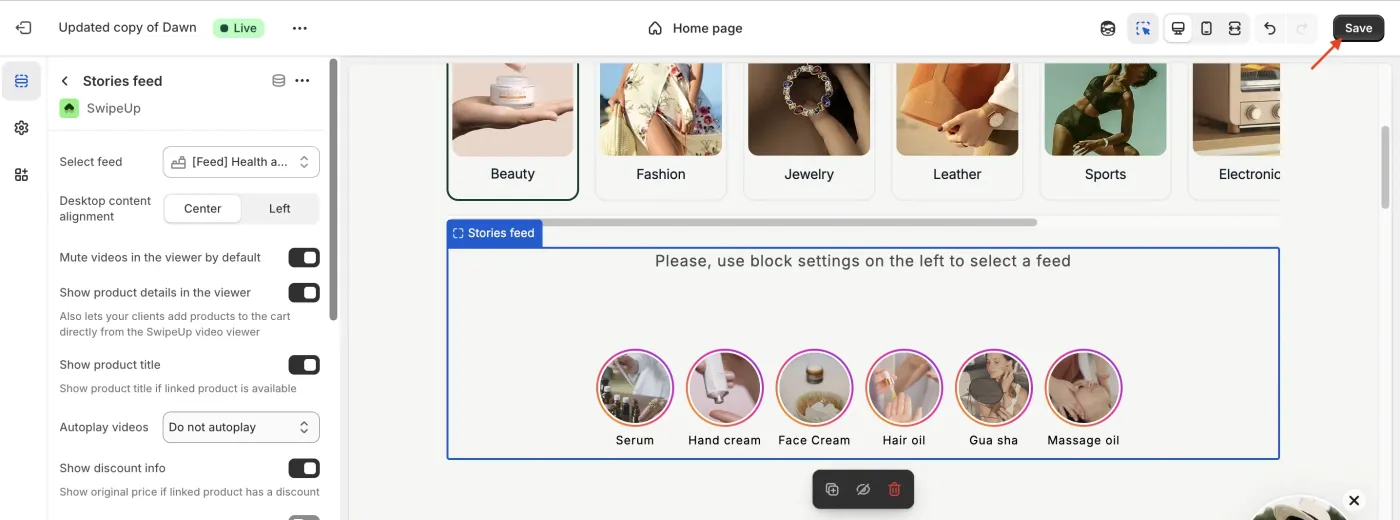
Step 4: Save
Click Save in the Theme Editor to apply your customizations. Your SwipeUp widgets will now reflect your brand styling.